So far I haven’t gotten very into home automation. Haven’t had that much of a need and didn’t want to invest much into it without a clear problem to solve.
The one exception is for the past couple of Christmases I automated all our lights. We had gotten an Amazon Echo / Alexa for free, I don’t even remember how now. We really only used it for playing music for the longest time. But with Christmas we put up electric candles in each of the windows. We also had a couple of Christmas trees, and outdoor lights. It was painful each night going around and plugging them all in, and then unplugging them before bed. That’s when I found some smart plugs that were compatible with the Echo. This allowed me to pretty easily create a routine that we can ask the Echo to turn the lights on or off.
Recently we re-arranged our living room and one lamp we had attached to an outlet controlled by a switch no longer reached. The smart plugs come in handy for that as well. Even set it up on a timer so that it turns on in the evening as it gets dark out.
When I started using n8n for automations in general it seemed like an obvious choice to tie it into work I’d done with the smart plugs and Alexa already.
Working remote I end up on a lot of video calls I wanted to get a better set up. For Christmas this year I got a better microphone to help with sound. My office can also be dark sometimes with not great lighting. My daughter had had a big ring light she was no longer using so I set it up behind my desk to add better lighting. The only issue was that given it’s position it was hard to get to when I needed to turn it on and off.
If I’m automating things why not, instead of just making it easier to turn the light on and off, have it come on automatically when a video meeting is about to start. That is the part that tended to be a bit tricky. There is a Google Calendar n8n node that allows you to connect and poll your calendar for different events, but this isn’t efficient. Especially with last minute calendar events, you’d have to poll very frequently. I was hoping there was a way I could use Google Calendar notifications to do it. There wasn’t anything straightforward, but by tying together some services I was able to get it working.
For the first iteration of the workflow I went simple. Just have an easy way to turn the light on and off. Then I could build off of that. I’ve used the Amazon Alexa skill Voice Monkey for some other things and it was a good candidate for this again. Here were the steps.
- In Voice Monkey I created two Routine Triggers. These are like virtual devices, one for turning the light on and one for turning it off.
- In the Alexa app I created two routines that when one of these devices was triggered it turned the plug either on or off.
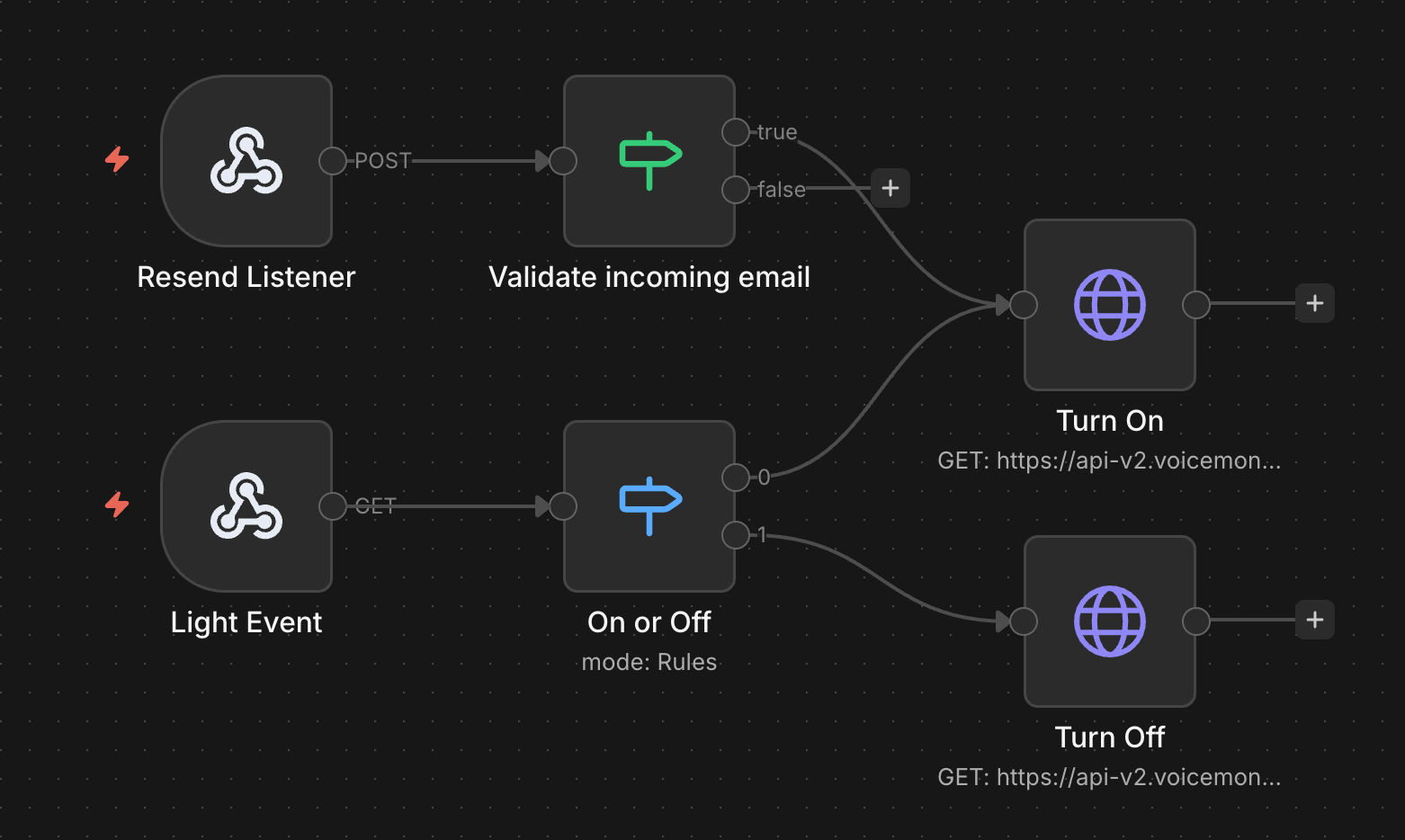
- In n8n I created a workflow that was triggered by a webhook. I used query parameters to specify if I was turning it on or off. The workflow checked which one and then called the Voice Monkey API associated with the right routine trigger.
With those I now have an easy to use API that I can use to turn the light on and off. To go along with it I created Apple Shortcuts on my computer so that they call that API and I can control the light from my desk.
The next step was to have it work automatically turn on when a meeting was going to happen. I was able to do that with the help of Resend. Here are the steps that I used for that.
- In Google Calendar enable an email notification a couple of minutes before the event.
- Set up a Filter in Gmail that finds those emails, automatically archives them, but also forwards them to an email address configured in Resend to receive emails.
- In Resend set up a webhook that listens for incoming emails and calls an API in the n8n workflow.
- In n8n a new webhook is set up to listen for these emails. It does some checks to make the sender is valid and then calls the API to turn on the light.
There are a number of services involved and steps, but n8n ties them all together nicely in a simple workflow to make it easy for me to manually control the light and also have it turn on automatically when a meeting is about to start.
 Sandy McFadden